
Mostrando entradas con la etiqueta windows. Mostrar todas las entradas

martes, 6 de octubre de 2009

Task Manager Disabled – Fix it !

Many times when working on a computer that has been infected with a virus, Trojan, or piece of spyware I find myself with the Task Manager being disabled. Its the first priority of Malware creators to disable access to Task manager so that the user is not able to end the process of the running Malware.Until or unless you are working in an office,there is seldom any restriction placed over Task manager by home users.So, I will be mentioning 5 methods to re-enable task manager and restore it to former glory.
To open the Task Manager, you normally would do one of the following:


Press CTRL-ALT-DEL on the keyboard.
Press CTRL-SHIFT-ESC on the keyboard.
Right-click on a blank area on the start bar and choose Task Manager.
Click on Start, Run and type TASKMGR in the run box and press Enter .
And if instead of opening of Task manager you see the screen given below,then you need to re-enable the task manager.


First we’ll begin with the various registry modification methods for correcting this problem.
Method 1

Using the Group Policy Editor in Windows XP Professional .
Click Start, Run, type gpedit.msc and click OK.
Under User Configuration, Click on the plus (+) next to Administrative Templates.
Click on the plus (+) next System, then click on Ctrl+Alt+Delete Options.
Find Remove Task Manager in the right-hand pane and double click on it.
Choose the option “Not Configured” and click Ok.
Close the Group Policy Window .
Method 2

Change the Task Manager Option through the Run line .
Click on Start, Run and type the following command exactly and press Enter.
REG add HKCU\Software\Microsoft\Windows\CurrentVersion\Policies\System /v DisableTaskMgr /t REG_DWORD /d 0 /f
It will restore your task manager and resolve your problem.
Method 3

Change Task Manager through a Registry REG file .
Click on Start, Run, and type Notepad and press Enter.
Copy and paste the given code into Notepad and save it to your desktop as taskmanager.reg
Windows Registry Editor Version 5.00
[HKEY_CURRENT_USER\Software\Microsoft\Windows\CurrentVersion\Policies\System]
“DisableTaskMgr”=dword:00000000
Double click on the taskmanager.reg file to enter the information into the Windows registry.
Method 4
Delete the restriction in the registry manually

Click on Start, Run, and type REGEDIT and press Enter.
Navigate to the following branch
HKEY_CURRENT_USER \ Software \ Microsoft \ Windows \ CurrentVersion \ Policies\ System
In the right pane, find and delete the value named DisableTaskMgr.
Close the registry editor .

Method 5
Download and Run FixTaskManager program.
Click on the following links and download the program FixTaskManager to your Desktop
Download Fixtaskmanager


Double-click on the file FixTaskManager on your desktop and run it .
This will restore your Task manager.

Written by ZERO

Hack administrator from Guest account

Ever wanted to hack your college pc with guest account/student account so that you can download with full speed there ? or just wanted to hack your friend’s pc to make him gawk when you tell your success story of hacking ? well,there is a great way of hacking an administrator account from a guest account by which you can reset the administrator password and getting all the privilages an administrator enjoys on windows..Interested ? read on…

Concept

Press shift key 5 times and the sticky key dialog shows up.This works even at the logon screen. But If we replace the sethc.exe which is responsible for the sticky key dialog,with cmd.exe, and then call sethc.exe by pressing shift key 5 times at logon screen,we will get a command prompt with administrator privilages because no user has logged on. From there we can hack the administrator password,even from a guest account.

Prerequisites

Guest account with write access to system 32.

Here is how to do that -

Go to C:/windows/system32
Copy cmd.exe and paste it on desktop
rename cmd.exe to sethc.exe
Copy the new sethc.exe to system 32,when windows asks for overwriting the file,then click yes.


Now Log out from your guest account and at the user select window,press shift key 5 times.
Instead of Sticky Key confirmation dialog,command prompt with full administrator privileges will open.


Now type “ NET USER ADMINISTRATOR aaa” where “aaa” can be any password you like and press enter.
You will see “ The Command completed successfully” and then exit the command prompt and login into administrator with your new password.
Congrats You have hacked admin from guest account.
Further..

Also, you can further create a new user at the command prompt by typing “NET USER XERO /ADD” where “XERO” is the username you would like to add with administrator privileges. Then hide your newly created admin account by -

Go to registry editor and navigate to this key

[HKEY_LOCAL_MACHINE\SOFTWARE\Microsoft\Windows NT\CurrentVersion\Winlogon\SpecialAccounts\UserList]

Here create a new DWORD value, write its name as the “user name” that u created for your admin account and live with your admin account forever :)

I hope that was informative..

Originally written by ZERO

sábado, 19 de septiembre de 2009

Evita que se ejecuten tareas básicas en Windows con Prevent

Evita que se ejecuten tareas básicas en Windows con Prevent: "

Evita que se ejecuten tareas básicas en Windows con PreventSi compartimos el ordenador con otras personas y no queremos que estas se pasen de la ralla siempre hay alguna forma de tenerlo enfilados. Quizás una forma para ello sea prohibirle que ejecute tareas básicas como cortar y pegar y otras más. Para ello podremos recurrir a Prevent.


Prevent es una pequeña herramienta que instalada en nuestro sistema evitará que se ejecuten ciertas tareas, como son: cortar, pegar, copiar, eliminar, copiar a, mover a, enviar a, renombrar y cerrar procesos. ¿Exagerado? Bueno, depende de para que lo usemos.


Y es que Prevent es más potente de lo que parece. Lo primero que se le viene a uno a la cabeza cuando ve una herramienta así es “Bueno, pues cierro el proceso y adiós prohibiciones”. Pues no, porque la herramienta permanece invisible para el usuario y aunque quiera y sepa no podrá matar el proceso ya que el botón para ello estará deshabilitado.


Ya digo que quizás para la mayoría de nosotros esta herramienta no tenga ninguna utilidad, pero en ciertos entornos (ordenadores de los que se quiera evitar que se saque información, por ejemplo) puede venir de perlas. Prevent es gratuita y funciona con Windows, aunque en la web de la aplicación no se indica exactamente con cual no creo que haya problemas en abrirlo en Windows XP o Vista.


Vía | gHacks

Descarga | Prevent


viernes, 1 de mayo de 2009

Encriptar archivos rápido y fácil

WinfileCrypt es un programa bastante pequeño (66 KB) con el que podremos encriptar fácilmente cualquier archivo en Windows. Para encriptar los archivos solo debemos "arrastrarlos a la ventana del programa", escoger el password y encriptarlo. Para desencriptarlo es el mismo proceso pero en reversa.

WinFileCrypt en acción:
Download WinFileCrypt

lunes, 27 de abril de 2009

Como copiar archivos de remote desktop a mi computadora

Este post explica como copiar archivos desde el cliente default de remote desktop de windows (mstsc.exe).

El proceso es el siguente:

1. Menu Inicio>>Ejecutar>> mstsc (o también: tecla Windows + R >> mstsc)

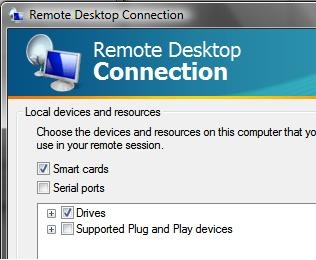
2. Luego en Options y en la pestaña Local Resources .

3. En Local Devices and Resources (en vista) ,click en el botón more... ( En Windows Xp ) van a ver un checkbox que dice Drives (o Local Drives).

4. Checkear el checkbox "Drives" .

remote-desktop

5. Click OK y listo.

OTRA FORMA:

Follow the following instruction in both local and remote computers.

Go to Start->Control Panel->Administrative Tools->Services. Enable and start the following services in the order shown below:

1. Network DDE DSDM 2. Network DDE 3. ClipBook

If you want to see the clipboard action in live:

You can go to Start->Run and type clipbrd and click OK to run clip board viewer. You will be shown current clipboard objects in this viewer.

Now you can use standard copy/paste menu options of the applications in both the computers to exchange the data.

lunes, 20 de abril de 2009

Ingresar a una computadora sin conocer la contraseña

Kon-boot

Más de una vez nos habrá pasado el necesitar acceder a un ordenador y no poder hacerlo por no disponer de la contraseña, ya sea porque se nos ha olvidado a nosotros o al propietario de la máquina (¿quién no ha tenido que arreglar el ordenador de sus padres?). En este caso, las opciones para recuperar la contraseña son varias, pero probablemente ninguna tan sencilla como Kon-boot.

Se trata de un sistema que nos permitirá arrancar el ordenador con cualquier usuario que le especifiquemos sin necesidad de conocer la contraseña y sin modificar ningún fichero en el disco. Mediante un disco de arranque, parchea los ficheros y nos ofrece acceso ilimitado a la máquina.

Kon-boot funciona tanto en Windows, permitiendo entrar con cualquier contraseña a cualquier usuario, como con Linux, con el que podremos acceder con permisos de root o bien podremos aumentar los privilegios de cualquier usuario durante la sesión actual.

Evidentemente, esta herramienta está pensada para obtener acceso a nuestros archivos en caso de haber perdido la contraseña y nunca para acceder a máquinas a las que no tengamos permiso. Si queréis evitar que se pueda ejecutar algo así en vuestro ordenador en la BIOS tenéis la solución.

Deberemos dejar el disco duro como único medio de arranque, evitando que se pueda arrancar desde un CD o desde una unidad externa y, una vez hecho esto, bloquearemos el acceso a la BIOS con contraseña. Evidentemente, esto también puede saltarse de varias maneras, pero es de conocimiento común que si alguien tiene acceso físico a nuestro ordenador hay maneras de conseguir los datos.

Lo que debemos hacer es ponérselo lo más difícil posible y, si tenemos datos sensibles, cifrar estos en el disco con una contraseña fuerte, de forma que aunque acceda a ellos no pueda leerlos.

Vía | Caballe.
Más información | Kon-boot.

martes, 31 de marzo de 2009

Desactivar la reproducción automática de dispositivos extraibles

Para desactivar la reproducción automática debemos seguir los siguientes pasos. Nos vamos a Inicio, Ejecutar, escribimos gpedit.msc y le damos a Aceptar. Se nos abrirá una ventana con dos paneles. En el panel izquierdo debemos navegar por Configuración del equipo, Plantillas administrativas y Sistema.

Al llegar a Sistema nos mostrarán en el panel derecho una serie de opciones. Debemos localizar la opción Desactivar Reproducción automática y hacer doble click encima. Se nos abrirá una ventana mostrándonos una serie de opciones y debemos marcar Habilitar y darle a Aceptar.

Con esto habremos deshabilitado la reproducción automática de todos los dispositivos que conectemos o insertemos en la computadora.

 
Locations of visitors to this page