sábado, 24 de mayo de 2008

Google Sites : Create a Website for your Family or Friends

Create pages, allow others to edit existing pages or create new ones, add file attachments, add photo slideshows, embed widgets, allow viewers to leave comments and lots more.

Create a Website Online for Free

Check out more features and demo video below.

Quick Feature Overview:

  • Easily create and manage group websites (family, friends, colleagues, club members etc.).
  • Create and add as many web pages as you want.
  • Insert links, add tables, add images, add photo albums, embed videos etc.
  • Make your website public or private (only accessible to people you invite).
  • Choose who can view and/or edit the website.
  • Allow viewers to leave comments and upload images.
  • Sign-up wih your existing Google account.

How to Create a Website with Google Sites (Video Tutorial)


Tomado de makeuseof.com

martes, 20 de mayo de 2008

Awesome Gmail tip You Don’t Know about. Seriously.

Just about when I thought I got everything out of Gmail, I discovered my top favorite feature. We have published over 30 tools in Gmail RoundUp 1 and almost 80 tools and tips in Gmail RoundUp 2 but never mentioned anything similar to this one. Tribute for this one goes to my ‘I am not into computers‘ type girlfriend.

Let’s say that your email address is ‘GeorgeBush@gmail.com’, basically everything sent to any of the following email addresses will be forwarded to your primary email.

  • GeorgeBush@gmail.com
  • G.eorgeBush@gmail.com
  • Ge.orgeBush@gmail.com

  • GeorgeBus.h@gmail.com
  • GeorgeBush@googlemail.com
  • G.eorgeBush@googlemail.com

  • GeorgeBus.h@googlemail.com

And that’s not all, you can place as many dots as you want, it can be even something like ‘G.e.o.r.g.e.B.u.s.h@gmail.com’ and you’ll still get it on ‘GeorgeBush@gmail.com’

Additionally, I just also found out that you can embed random text to your email ID using ‘+’ sign. That is to say ‘GeorgeBush+anythingyouwant@gmail.com’ can be used as your email address, as well.

Ok I got it. Now what ?

1. One email for every purpose

Instead of using different email addresses for various purposes (work, school, friends, etc.) you can use different variations of your Gmail and filter incoming mails by ’sent to’ address. For instance, all incoming mail sent to ‘Name.Surname@gmail.com’ can be put to folder ‘work’, messages sent to ‘NameSurname@gmail.com’ can be put to ‘friends’, ‘N.ameSurname@gmail.com’ can be used for newsletters, and so on.

2. Track/Block

When signing up for some website, say thatwebsite.com, you can add thatwebsite to your Gmail user ID (eg. GeorgeBush+thatwebsite@gmail.com). This way you can block your subscription whenever you want and even identify those websites that distribute your email address to spammers.

Tomado de makeusof.com

lunes, 12 de mayo de 2008

Top 10 de los juegos Open Source del año 2007

(en orden inverso)
Glest Puesto Nº10:
Glest (66 puntos)

Glest es un juego de estrategia en tiempo real que quedó en tercer lugar en la votación de 2006. Durante el pasado año el juego ha seguido evolucionando y su comunidad de usuarios ha estado bastante activa, desarrollando muchos mods que le han dado variedad al juego.

Planeshift Puesto Nº9:
Planeshift (66 puntos)

Planeshift es un MMORPG que nos introduce en un fantástico mundo subterráneo repleto de criaturas. Este veterano proyecto va mejorando poco a poco con los años, nos ofrece numerosas horas de juego en un mundo persistente y con una comunidad de jugadores muy activa.

Urban Terror Puesto Nº8:
Urban Terror (67 puntos)

Siendo en sus orígenes un mod para Quake 3, desde el año pasado podemos disfrutar de Urban Terror como un juego completamente independiente. Urban Terror tiene un estilo de juego similar al clásico Counter Strike, pero buscando la espectacularidad por encima del realismo.

Nexuiz Puesto Nº7:
Nexuiz (74 puntos)

Nexuiz es un juego de trepidante acción 3D basado en el motor DarkPlaces. Se ve que a los usuarios les han gustado las mejoras introducidas durante 2007, puesto que sube una posición respecto al año pasado.

Warsow Puesto Nº6:
War§ow (90 puntos)

Warsow es un colorido y original FPS cuyo motor es una evolución del que tenía Quake 2. Hace uso de la tecnología Cel Shading para dar un aspecto de comic al juego y los personajes pueden realizar saltos imposibles, obteniéndose como resultado un juego digno de probar.

Wormux Puesto Nº5:
Wormux (93 puntos)

Wormux viene a demostrarnos que la diversión no está reñida con las 2 dimensiones. En este juego podremos pasar muy buenos ratos compitiendo contra nuestros amigos, en batallas protagonizadas por distintas mascotas del software libre.

World of Padman Puesto Nº4:
World of Padman (98 puntos)

World of Padman es un juego de acción 3D con un cuidado aspecto gráfico y con algunas dosis de humor. Controlaremos a uno de los diminutos personajes del juego, disponiendo de un alocado armamento y recorriendo enormes escenarios.

Frets on Fire Puesto Nº3:
Frets on Fire (134 puntos)

Frets on Fire es divertido juego en el que has de simular que tocas una guitarra, que con su original modo de control ha encandilado a numerosos usuarios. Además su evolución durante 2007 ha sido bastante considerable, existiendo numerosas canciones aportadas por los usuarios con las que jugar.

OpenArena Puesto Nº2:
OpenArena (134 puntos)

OpenArena es un esfuerzo por realizar un clon completamente libre del clásico juego multijugador Quake III Arena. Y el resultado por el momento está realmente bien, con una buena variedad de armas, personajes, mapas en los que jugar y manteniendo la esencia del original. El más rápido gana.

Battle For Wesnoth Puesto Nº1:
Battle for Wesnoth (171 puntos)

Battle for Wesnoth se hace otra vez con el puesto número 1 en esta selección de los mejores juegos libres del año. Para el que no lo conozca aún, estamos ante un completísimo y entretenido juego de estrategia por turnos, con un buen número de campañas para un jugador y múltiples mapas para jugar contra nuestros amigos por Internet.

sábado, 10 de mayo de 2008

Quick Add Links to Windows Vista Explorer Favorite Links

If you've used Windows Vista for 5 minutes, you'll have seen the Favorite Links when browsing around your filesystem. What is annoying is that by default the favorite links doesn't include enough useful links.

Here's the default links list (I'm sure you have seen this)

If you want to add a new link to the links bar, all you have to do is drag and drop the folder onto the links bar. I'm going to add my Computer link to the menu:

Now, it shows up in the list:

Much better!

Managing your links is extremely simple. Just open up your home directory by clicking on your icon on the start menu. You'll see the LInks folder:

This folder contains all of the shortcuts to your favorite locations.

To remove an item from the list, you can either right-click the item and choose Remove Link, or just go to your Links folder and delete it from there.


Tomado de:
http://www.howtogeek.com/

miércoles, 7 de mayo de 2008

phpBook - guestbook admin url

This is one of the coolest guest book written in php/MySQL. You can download software from smartisoft website. Only problem is it does not show you admin url by default. Here is url that you need to use it!

yourdomain.com

YOURPASSWORD is stored in your config.php as variable $adminpass! Have a fun!!!

http://www.domain.com/guestbook/guestbook.php?action=admin&admin=YOURPASSWORD

How to navigate in the DOS command prompt

Earlier today I had to boot a clients computer into Safe Mode and delete a virus via the DOS command prompt because if Windows loaded, the file would become locked and hence undeleteable! There are several other reasons why you may have to use the command prompt in your life (though rarely), so it’s good to know how to navigate your way around!

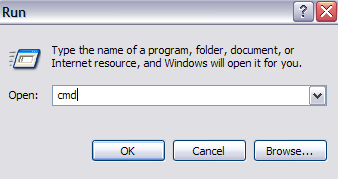
If you’ve been wanting to learn how to use the command prompt in Windows, I’ll go through some of the basic MS DOS commands that are performed most often. Just so everyone’s on the same page, you can get to the command prompt by going to Start and then click on Run and typing in CMD.

command prompt

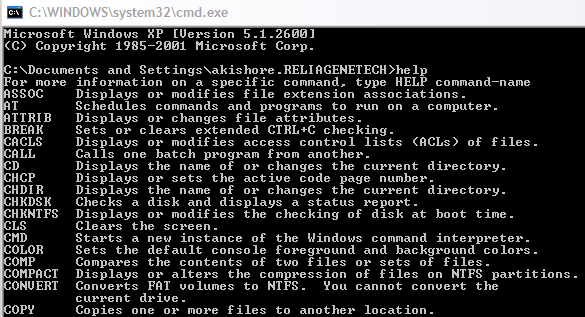
You’ll now see a large black window with the cursor at the end of the path to your user profile in C:\Documents and Settings\Username. So what to do now!? Well, since I can’t explain everything, you’ll probably want to end up using some of the help guides that are provided in MS DOS itself by typing in HELP and pressing Enter.

When you do that, you’ll get a list of all the commands you can use in MS DOS and a short description of what they do:

ms dos

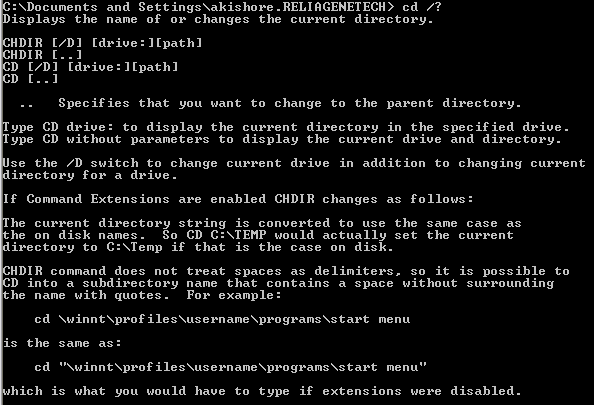
You can also find out more detailed information about the parameters and how to use each command by typing in the command name followed by a /?. For example, typing in CD /?, will present you with a quick tutorial on how to use the CD command:

command promt commands

As you can see from above, the MS DOS command CD displays the name of or changes the current directory. So if you wanted to change from the default user profile directory to let’s say the Windows System32 directory to delete a virus file, you would type in the following to navigate to that directory:

cd c:\window\system32 and press Enter

You current directory at the prompt will now change to:

ms dos commands

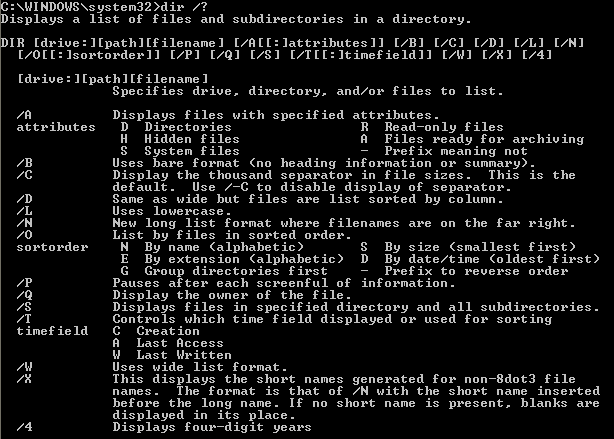
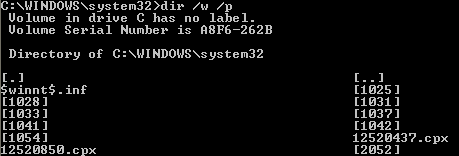
Now that you are in that directory, you may want to view all of the files and directories first, so you can type in the command DIR and press Enter. You’ll now get a giant list of all of the files and folders in that directory. You can type in DIR /? and see what parameters you can pass to it.

dir ms dos command

As you can see, you could type in DIR /P to give the list in a paginated format that you can browse through slowly. Or you could type in DIR /W to get the list in a wide format rather than one single column. The cool thing about DOS is that you can include several parameters for each command, so you could type in DIR /P /W and get a page by page view along with wide format:

dir dos command

There are lots of other commands that you can use to do all sorts of stuff like copy files, make directories, print text files, delete files, etc. So if you can do most of this stuff in Windows using the GUI interface, then why bother with DOS, right?

Well, the cool thing is that any command you type in the command prompt, like we showed above, can be saved into a file with a .BAT extension and run anytime by just clicking on the file or can be scheduled to run using the Windows Scheduled Tasks Control Panel applet.

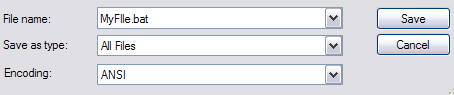
So if you want to be able to routinely perform some simple actions on your computer, like copying files from one folder to another, just type the commands into Notepad and save the file with a .BAT extension instead of as a text file. Basically, you have to choose All Files for the File Type option and then type in the name like “MyFile.bat” with the quotes included.

bat file

A couple of other very useful commands that you might have to end up using are listed below:

  • chkdsk - Verifies a hard disk or a floppy disk for file system integrity.
  • copy - Copies files from one location to another. The destination defaults to the current directory. If there are multiple source files, the destination must be a directory or else you will get an error.
  • fc - Compares two files or sets of files and displays the differences between them
  • fdisk - Manipulates hard disk partition tables. When run from the command line, it displays a menu of various partitioning operations.
  • format - Delete all the files on the disk and reformat it for MS-DOS. Use mostly for formatting floppy disks or other removable disks.
  • scandisk - Disk diagnostic utility that is a replacement for the CHKDSK utility.
  • SFC - System File Checker - Scans all protected system files and replaces incorrect versions with correct file versions.

That should hopefully get you up and running on how to use and navigate in the MS DOS command prompt! If you have a question, please post a comment! Enjoy!

sábado, 3 de mayo de 2008

Plugin en NetBeans para desarrollar extensiones Mozilla

Fuente: Mozilla Hispano

netbeans

Leemos en el boletín semanal 330 de NetBeans que hay disponible un plugin para NetBeans 6.0 que facilita la creación de la estructura de extensiones para Firefox, Thunderbird, SeaMonkey, etc. Como puede verse en el tutorial, el plugin facilita la creación del archivo install.rdf con las especificaciones de la extensión y crea automáticamente para nosotros la estructura de directorios de la extensión. Como, además, NetBeans incorpora un editor XML que reconoce las especificaciones DTD, así como ayudas a la codificación en JavaScript, la escritura del código XUL y, especialmente, JavaScript contarán con cierta asistencia por parte del IDE.

NetBeans 6.0 es un IDE multiplataforma basado en Java que permite el desarrollo de proyectos en (por supuesto) Java, Ruby, JavaFX, JavaScript, JSP, HTML, C++ y otros lenguajes. Además, mediante plugins en desarrollo, proporciona ayudas a la codificación en PHP.

 
Locations of visitors to this page